
12 KiB
GParted 是一款适用于 Linux 的图形化磁盘分区管理工具,通过它可以便捷地为 VMware 中的 Ubuntu Desktop 增大磁盘空间。然而你可能正在使用 Ubuntu Server,并不想要安装或并不被允许安装图形化界面,本文介绍了如何在不使用 GParted 的情况下,通过命令行使用自带的工具为 VMware 中的 Ubuntu Server 增大磁盘空间。
请注意辨别磁盘空间是真的接近耗尽,而不是在系统安装时只真正使用了大约一半空间。参见 Ubuntu server 20.04 安装后没有分配全部磁盘空间
背景介绍
环境如下:
- VMware® Workstation 17 Pro 17.5.0 build-22583795
- Ubuntu 20.04.6 LTS (GNU/Linux 5.4.0-169-generic x86_64)
尽管最初按照心理预期为 Ubuntu Server 分配了 50G 的磁盘空间,主要用于运行一些 Docker 容器,但是不知不觉之间发现磁盘空间的占用率还是上升到了 90%。一时之间想不到可以清理什么,决定先增大一些磁盘空间。
-
使用
df -h命令显示文件系统的总空间和可用空间信息。可知/dev/mapper/ubuntu--vg-ubuntu--lv已使用95%。$ df -h
Filesystem Size Used Avail Use% Mounted on
udev 7.8G 0 7.8G 0% /dev
tmpfs 1.6G 3.0M 1.6G 1% /run
/dev/mapper/ubuntu--vg-ubuntu--lv 48G 43G 2.5G 95% /
tmpfs 7.8G 0 7.8G 0% /dev/shm
tmpfs 5.0M 0 5.0M 0% /run/lock
tmpfs 7.8G 0 7.8G 0% /sys/fs/cgroup
vmhgfs-fuse 932G 859G 73G 93% /mnt/hgfs
/dev/sda2 2.0G 209M 1.6G 12% /boot
/dev/loop0 64M 64M 0 100% /snap/core20/2015
/dev/loop1 64M 64M 0 100% /snap/core20/2105
/dev/loop2 41M 41M 0 100% /snap/snapd/20290
/dev/loop3 92M 92M 0 100% /snap/lxd/24061
/dev/loop4 41M 41M 0 100% /snap/snapd/20671
tmpfs 1.6G 0 1.6G 0% /run/user/1000|
解决步骤
调整虚拟磁盘大小
不论如何,需要先修改
VMware的相关设置。
- 先将客户机
Ubuntu server关机 - 然后通过“虚拟机设置 -> 硬盘 -> 扩展 -> 最大磁盘大小”将最大虚拟磁盘大小设置为目标值(
50G -> 80G) - 根据提示可知,在
VMware中的扩展操作仅增大虚拟磁盘的大小,分区和文件系统的大小不受影响。你必须从客户机操作系统内部对磁盘重新进行分区和扩展文件系统。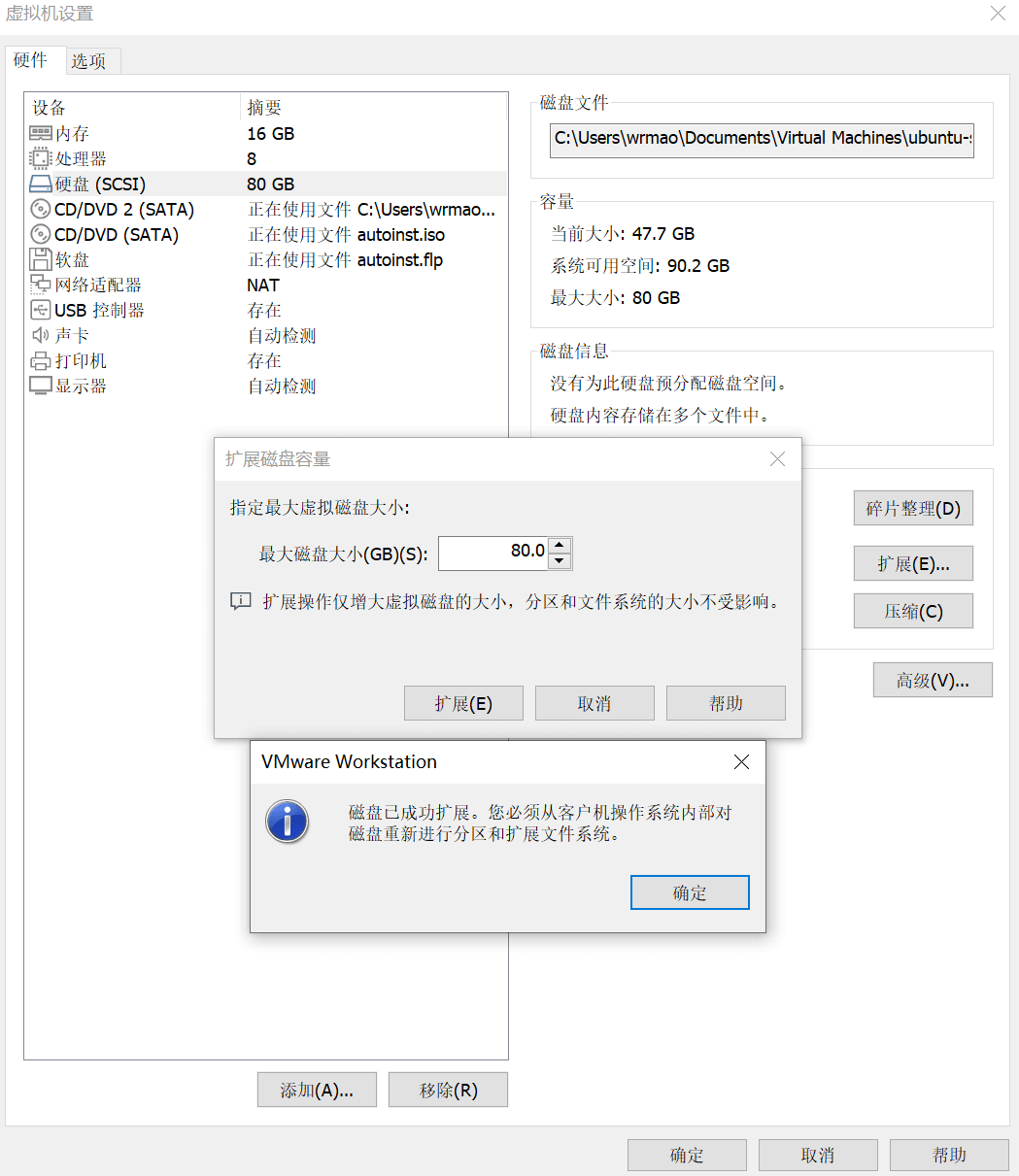
调整分区大小
分区管理
-
使用
sudo cfdisk命令进入分区管理的交互式界面。可知可用空间为新增的30G。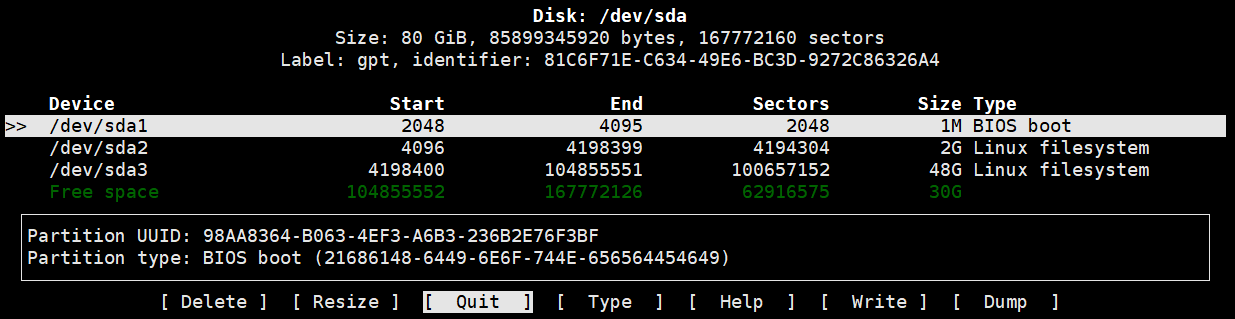
-
使用上下方向键选择准备调整大小的分区
/dev/sda3,使用左右方向键选择Resize操作。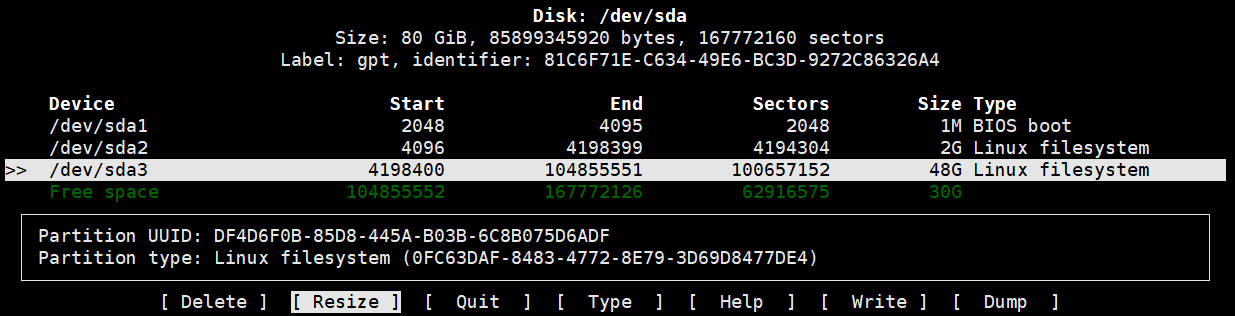
-
输入新的分区大小,默认为原大小加上可用空间大小等于
78G。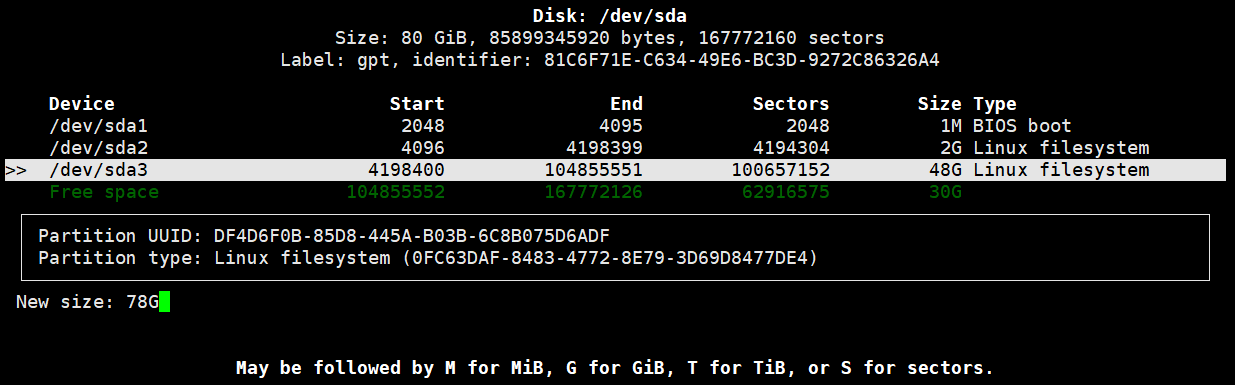
-
使用左右方向键选择
Write操作,写入修改。然后输入yes确认。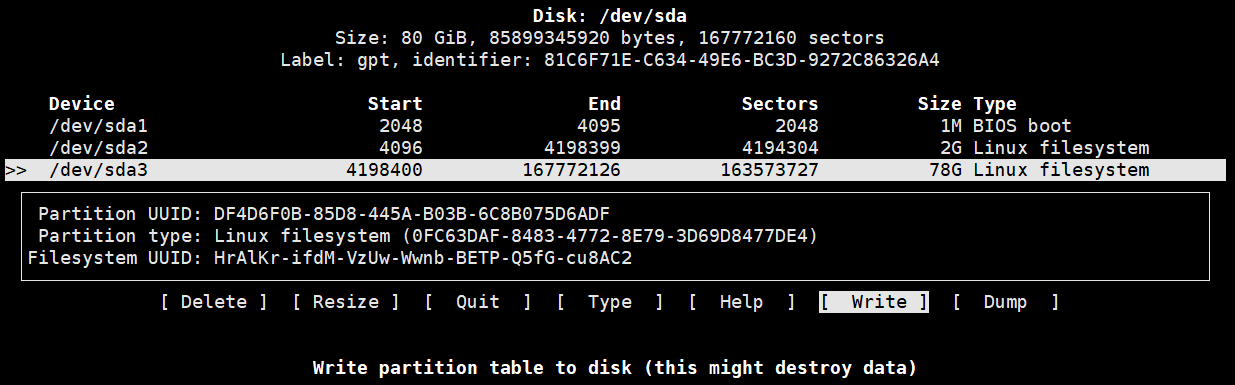
-
提示分区表已改变。然后使用左右方向键选择
Quit操作,退出分区管理的交互式界面。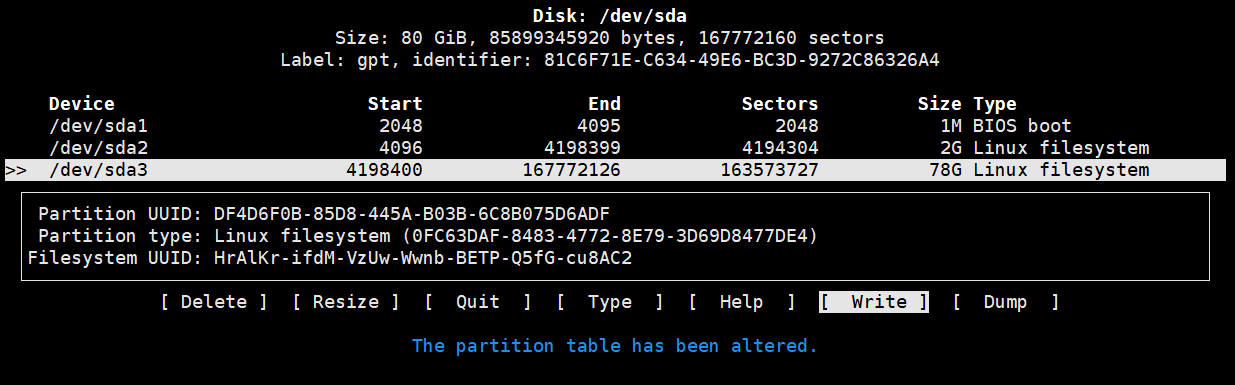
-
退出时提示如下。
$ sudo cfdisk
GPT PMBR size mismatch (104857599 != 167772159) will be corrected by write.
Syncing disks.|
调整物理卷大小
-
使用
sudo pvresize /dev/sda3命令调整LVM中物理卷的大小。|$ sudo pvresize /dev/sda3
Physical volume "/dev/sda3" changed
1 physical volume(s) resized or updated / 0 physical volume(s) not resized|
调整逻辑卷大小
-
使用
sudo fdisk -l命令显示物理卷和逻辑卷的大小差异。在末尾可见/dev/sda3的大小为78G,/dev/mapper/ubuntu--vg-ubuntu--lv的大小为47.102G。$ sudo fdisk -l
Disk /dev/loop0: 63.48 MiB, 66547712 bytes, 129976 sectors
Units: sectors of 1 * 512 = 512 bytes
Sector size (logical/physical): 512 bytes / 512 bytes
I/O size (minimum/optimal): 512 bytes / 512 bytes
Disk /dev/loop1: 63.93 MiB, 67014656 bytes, 130888 sectors
Units: sectors of 1 * 512 = 512 bytes
Sector size (logical/physical): 512 bytes / 512 bytes
I/O size (minimum/optimal): 512 bytes / 512 bytes
Disk /dev/loop2: 40.88 MiB, 42840064 bytes, 83672 sectors
Units: sectors of 1 * 512 = 512 bytes
Sector size (logical/physical): 512 bytes / 512 bytes
I/O size (minimum/optimal): 512 bytes / 512 bytes
Disk /dev/loop3: 91.85 MiB, 96292864 bytes, 188072 sectors
Units: sectors of 1 * 512 = 512 bytes
Sector size (logical/physical): 512 bytes / 512 bytes
I/O size (minimum/optimal): 512 bytes / 512 bytes
Disk /dev/loop4: 40.44 MiB, 42393600 bytes, 82800 sectors
Units: sectors of 1 * 512 = 512 bytes
Sector size (logical/physical): 512 bytes / 512 bytes
I/O size (minimum/optimal): 512 bytes / 512 bytes
Disk /dev/fd0: 1.42 MiB, 1474560 bytes, 2880 sectors
Units: sectors of 1 * 512 = 512 bytes
Sector size (logical/physical): 512 bytes / 512 bytes
I/O size (minimum/optimal): 512 bytes / 512 bytes
Disklabel type: dos
Disk identifier: 0x90909090
Device Boot Start End Sectors Size Id Type
/dev/fd0p1 2425393296 4850786591 2425393296 1.1T 90 unknown
/dev/fd0p2 2425393296 4850786591 2425393296 1.1T 90 unknown
/dev/fd0p3 2425393296 4850786591 2425393296 1.1T 90 unknown
/dev/fd0p4 2425393296 4850786591 2425393296 1.1T 90 unknown
Disk /dev/sda: 80 GiB, 85899345920 bytes, 167772160 sectors
Disk model: VMware Virtual S
Units: sectors of 1 * 512 = 512 bytes
Sector size (logical/physical): 512 bytes / 512 bytes
I/O size (minimum/optimal): 512 bytes / 512 bytes
Disklabel type: gpt
Disk identifier: 81C6F71E-C634-49E6-BC3D-9272C86326A4
Device Start End Sectors Size Type
/dev/sda1 2048 4095 2048 1M BIOS boot
/dev/sda2 4096 4198399 4194304 2G Linux filesystem
/dev/sda3 4198400 167772126 163573727 78G Linux filesystem
Disk /dev/mapper/ubuntu--vg-ubuntu--lv: 47.102 GiB, 51535413248 bytes, 100655104 sectors
Units: sectors of 1 * 512 = 512 bytes
Sector size (logical/physical): 512 bytes / 512 bytes
I/O size (minimum/optimal): 512 bytes / 512 bytes| -
使用
sudo lvresize -l +100%FREE /dev/mapper/ubuntu--vg-ubuntu--lv命令调整逻辑卷的大小。1
2
3$ sudo lvresize -l +100%FREE /dev/mapper/ubuntu--vg-ubuntu--lv
Size of logical volume ubuntu-vg/ubuntu-lv changed from <48.00 GiB (12287 extents) to <78.00 GiB (19967 extents).
Logical volume ubuntu-vg/ubuntu-lv successfully resized.
调整文件系统大小
-
使用
sudo resize2fs /dev/mapper/ubuntu--vg-ubuntu--lv命令调整文件系统的大小。1
2
3
4
5$ sudo resize2fs /dev/mapper/ubuntu--vg-ubuntu--lv
resize2fs 1.45.5 (07-Jan-2020)
Filesystem at /dev/mapper/ubuntu--vg-ubuntu--lv is mounted on /; on-line resizing required
old_desc_blocks = 6, new_desc_blocks = 10
The filesystem on /dev/mapper/ubuntu--vg-ubuntu--lv is now 20446208 (4k) blocks long. -
使用
df -h命令显示文件系统的总空间和可用空间信息。确认/dev/mapper/ubuntu--vg-ubuntu--lv的大小已调整为77G。1
2
3
4
5
6
7
8
9
10
11
12
13
14
15
16$ df -h
Filesystem Size Used Avail Use% Mounted on
udev 7.8G 0 7.8G 0% /dev
tmpfs 1.6G 3.1M 1.6G 1% /run
/dev/mapper/ubuntu--vg-ubuntu--lv 77G 43G 31G 59% /
tmpfs 7.8G 0 7.8G 0% /dev/shm
tmpfs 5.0M 0 5.0M 0% /run/lock
tmpfs 7.8G 0 7.8G 0% /sys/fs/cgroup
vmhgfs-fuse 932G 859G 73G 93% /mnt/hgfs
/dev/sda2 2.0G 209M 1.6G 12% /boot
/dev/loop0 64M 64M 0 100% /snap/core20/2015
/dev/loop1 64M 64M 0 100% /snap/core20/2105
/dev/loop2 41M 41M 0 100% /snap/snapd/20290
/dev/loop3 92M 92M 0 100% /snap/lxd/24061
/dev/loop4 41M 41M 0 100% /snap/snapd/20671
tmpfs 1.6G 0 1.6G 0% /run/user/1000